
Site Builder & Websites
101 Guide: How to Create a Custom Website
6 min read•Updated 3 days ago
In this article
Custom Websites can be created by anyone even without in-depth coding or programming knowledge. AI4B is user-friendly and allows you to create web pages using a drag-and-drop website builder.
Step 1: Create a Website
Custom Websites can be created by anyone even without in-depth coding or programming knowledge. AI4B is user-friendly and allows you to create web pages using a drag-and-drop website builder. Not only will your website look great, but the customization tools allow you to make it easy to navigate and user-friendly on the front end, while AI4B also allows you to set up automation and specifics on the backend to help you manage your business.
• Navigate to Sites > Websites.
• Choose +New Website to get started
• In the popup window, you'll need to choose a Website Name. This will help you track multiple websites in AI4B. You can also choose from pre-built website templates.
• After naming the Website, click "Create Website".
• Click +Add New Page to create a page with a name and a path name.

Step 2: Managing Your Website(s)
Navigate to Sites > Websites. This at-a-glance view provides an overview of all your websites. You can use the search bar to search through your sites or click the three dots settings icon to clone, edit, reorganize, or delete.
In the drag-and-drop Website Builder:
• Use the left menu to drag sections, rows, columns, and elements onto the canvas.
• Highlight elements to adjust typography, colors, padding, and animations.
• Press Shift + / at any time to open the complete directory of keyboard shortcuts for fast navigation and instant saving without touching your mouse.
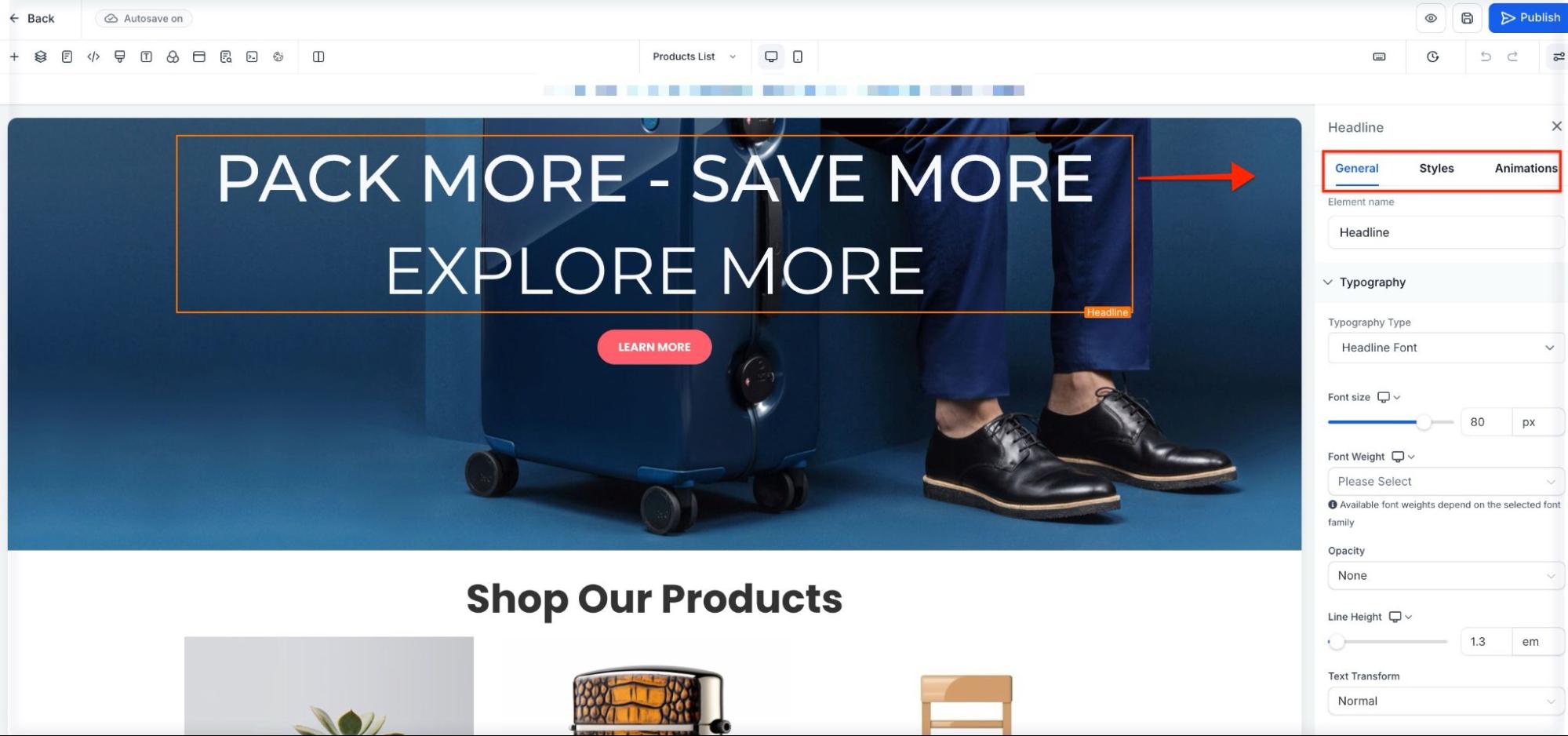
Here are a few examples of some features you can incorporate:
1. Pre-built section templates: Streamline website creation by inserting ready-made sections (Hero, About, Team, Testimonials, FAQ) directly from the library.
2. Blog Post element: Add dynamic blog post grids with filtering by Recent Post, Category, or Author.
3. Global Sections: Save headers or footers as global sections so updates apply across your entire website automatically.
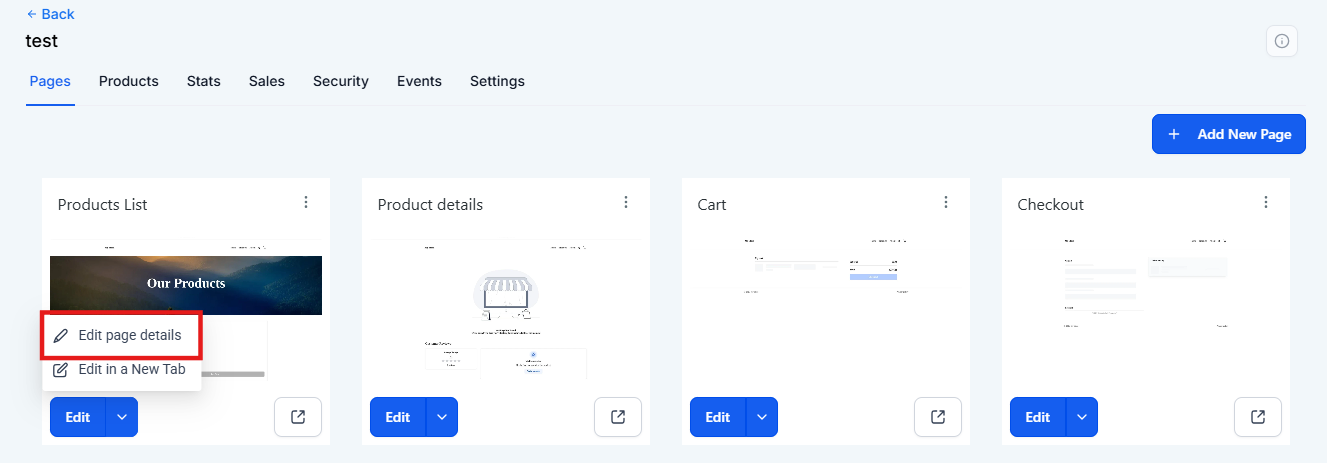
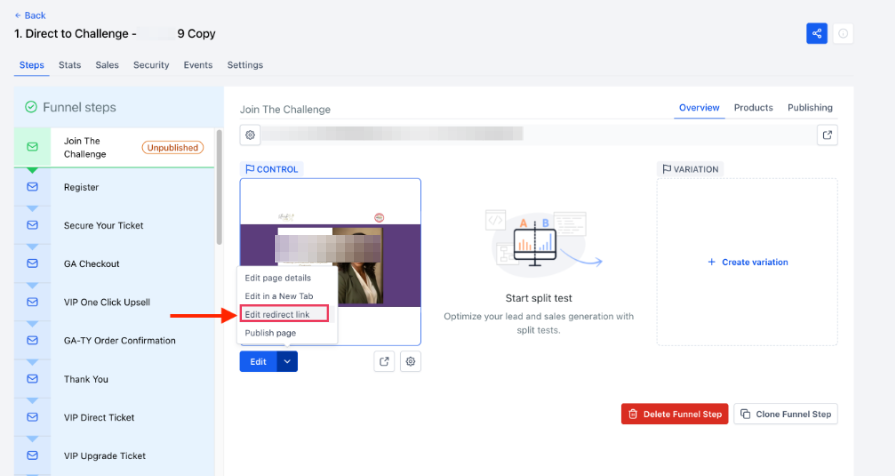
Status Visibility & Publishing
Unpublished pages display an "Unpublished" badge in the page list.
• Unpublishing does not affect the domain's SSL or DNS settings.
• Running A/B tests stop automatically while historical data is preserved.
• Pages can be republished anytime through Publish.
Frequently Asked Questions
How do I create a new website in AI4B?
Navigate to Sites > Websites, click +New Website, give it a name, select a template or blank page, and click Create Website.
Can I build a website if I don't know how to code?
Absolutely. AI4B features a no-code visual drag-and-drop builder with custom styling controls. Custom CSS/JS is available for power users.
Does the builder support keyboard shortcuts?
Yes! Press Shift + / inside the builder to view shortcuts for navigating containers, saving, undo/redo, and toggling panels.
Can I save a custom section to reuse on other pages?
Yes. Click the Save icon on that section (green bar) to add it to your Global Sections or Saved Sections library.
Did this article answer your question?